Workflow Guide
Turn a Workout Screenshot into a Progression Dashboard
Your last few sessions are sitting on your phone as screenshots. The numbers are right there — sets, reps, weights — but they're trapped inside a session screen with no export button and no API to pull them out. Even where the app shows a basic trend, there's no estimated 1RM line, no plateau alerts, and no way to tie the data to your recovery. This guide walks through the practical route: turn that workout screenshot into a live progression dashboard.
Short answer: how do I get a dashboard out of a workout screenshot?
The blocker: apps like WHOOP Strength Trainer log your sets and reps but expose no developer API for that data, and offer no cross-session progression view. Your numbers are locked inside the session screen.
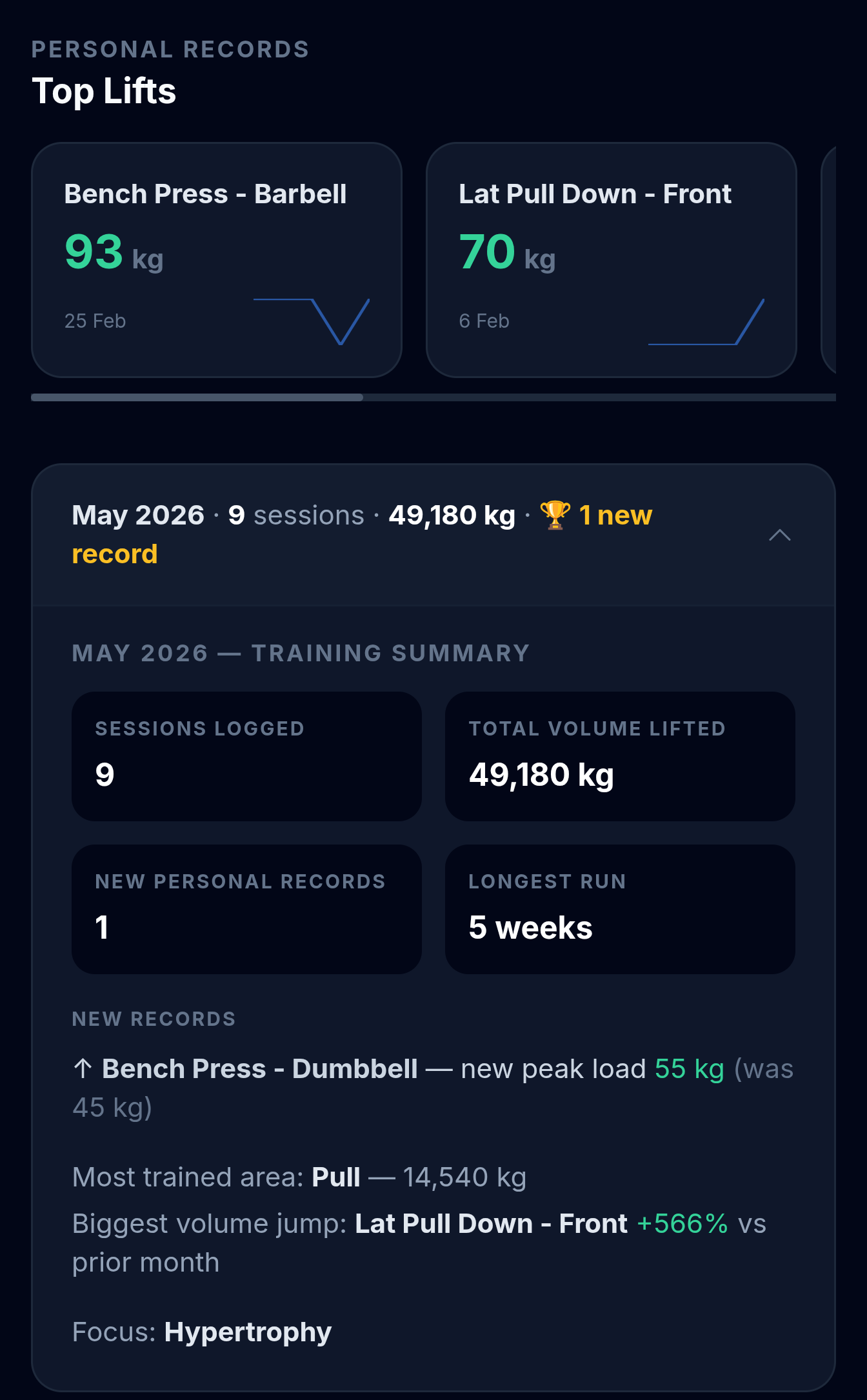
The route that works: screenshot the session summary, upload it to StrengthInsight, and AI OCR reads the exercises, sets, reps and weights off the image. You get a progression dashboard — estimated 1RM trends, Peak Load and Top Set Output records, PR tracking, plateau detection and a recovery-aware next workout. Hevy and Fitbit screenshots work the same way.
Get the data out
From a Locked Screenshot to a Live Dashboard
- No API needed — the screenshot is the export
- AI OCR extracts every exercise, set, rep and weight off the image
- You get estimated 1RM trends, records, and PR tracking automatically
- Works for WHOOP, Hevy and Fitbit session screens alike
Stop scrolling back through individual sessions. Upload a screenshot and see the trend.
Build my dashboard →Why your data is trapped in the first place
Most strength logging today happens inside an app that was built to capture a session, not to analyse a training block. WHOOP Strength Trainer is the clearest example. You log your exercises, sets, reps and weights during the workout, and afterwards you get a tidy session summary alongside your strain and recovery data. That summary is genuinely useful for reviewing the day you just trained.
The problem is everything that happens after that screen. WHOOP exposes no Strength Trainer data through its developer API — the recovery, sleep and strain endpoints exist, but the per-exercise lift detail you entered is not available to pull out programmatically. There's no CSV export of your sets either. So the data physically exists, but the only place you can see it is the session screen itself, one workout at a time.
That leaves you with the same situation a lot of lifters are in: a camera roll full of session screenshots, a vague memory that bench felt heavier last month, and no dashboard anywhere that actually shows the trend. The numbers are captured. They're just scattered and locked.
→ Unlock your screenshots into a dashboard
The practical route: screenshot in, dashboard out
You don't need an API to get your data into a usable form. The screenshot already contains everything — the exercise names, the set numbers, the reps and the loads. The work is reading that image accurately and structuring it into something you can trend. That's exactly what StrengthInsight does. Here's the full workflow, start to finish:
What gets extracted from the image
The OCR step isn't just reading text — it's parsing a workout into structured rows. From a single WHOOP Strength Trainer screenshot, here's what comes out:
- Exercise names — each movement in the session, normalised so "Barbell Bench Press" and "Bench Press (Barbell)" map to the same lift across sessions
- Sets and reps — every set's rep count, in order, so the working sets are distinguished from warm-ups
- Weights — the load per set, in whatever unit your screenshot shows (kg or lb), kept consistent across uploads
- Session date — pulled from the screen so the workout lands in the right place on your timeline
That structured data is the raw material. Once it's in, the dashboard does the analysis you can't do by eyeballing a screenshot.
What the dashboard shows you
This is the part the session screen never gives you. Instead of one isolated workout, you see your lifts as trends and records across every session you've uploaded:
- Estimated 1RM trend per exercise — your best set each session (weight × reps, via the Epley formula) plotted over time, so a rising line means progress and a flat line for four-plus weeks flags a stall. This is the estimated 1RM trend it builds from sets a screenshot alone can't trend.
- Peak Load, Top Set Output and Best Session Total records — three distinct records per exercise: your heaviest single load, your best weight × reps single set, and your highest total volume in one session. If you're unsure which record actually matters for your goal, that breakdown is worth reading.
- PR tracking and drought counter — a clean timeline of when you last set a personal record on each lift, plus how many days it's been since the last one
- Plateau detection — an automatic flag when peak load and volume have sat within a few percent of each other across recent sessions, so you catch a stall before it eats a whole block
- Recovery-aware next workout — a suggestion for your next session that accounts for both your lift trend and your recovery state, instead of guessing
→ Turn your screenshots into a progression dashboard
Try it now
You Already Have the Screenshots
- Upload 2–3 recent sessions and the dashboard fills in immediately
- No API, no CSV, no manual data entry — the image is the import
- Works whether your screenshots come from WHOOP, Hevy or Fitbit
The data is already on your phone. The only thing missing is the dashboard.
Upload a workout screenshot →WHOOP, Hevy and Fitbit all work the same way
WHOOP Strength Trainer is the case where this matters most, because there's no API route at all for the lift data — the screenshot is genuinely the only way out. But the same workflow applies to other apps whose session screens trap your numbers in much the same way.
| Source | What the screenshot shows | Dashboard you get |
|---|---|---|
| WHOOP Strength Trainer | Session summary with exercises, sets, reps, weights | ✓ Full progression view |
| Hevy | Workout log with per-set reps and loads | ✓ Same trends & records |
| Fitbit | Logged strength session detail | ✓ Same trends & records |
Whatever the source, the data flows into the same dashboard, so you can keep using the app you already log in and still get a unified progression view across all of it. If you switch apps midway through a year, your history doesn't fragment — the screenshots stitch it back together.
Why this beats scrolling back through sessions
You can, technically, review your progress by scrolling through old session screens one at a time and trying to hold the numbers in your head. In practice nobody does this for long, because it doesn't surface anything. A plateau on an accessory lift is invisible when you only ever look at one session. A slow climb in volume on your main compound is impossible to feel session to session, but obvious as a line on a chart.
A few reasons the dashboard view changes things:
- Trends beat snapshots — a single session tells you what you did; a trend tells you whether the training block is working
- Records are tracked for you — you don't have to remember your old best; the PR and drought counters do it automatically
- Plateaus get flagged early — instead of noticing a stall months later, you get an alert while you can still change something
- Recovery and load sit together — a down week reads as fatigue, not regression, because the recovery context is right next to the lift trend
That's the whole point of getting the data out of the screenshot: once it's structured and trended, it answers questions a session screen never could.
How many screenshots you need
One screenshot gives you a starting point — your records and a first data point per exercise. The trends become meaningful once there's history to plot against. For lifters training three to four days a week, somewhere around eight to twelve uploads is enough to see a real trend on your main movements, which is roughly two to three weeks of consistent uploading. After about ten weeks you can look back and see which training blocks actually moved the numbers, not just which ones felt hard.
The good news is you probably already have a backlog. If you've been screenshotting your sessions out of habit, you can upload several at once and backfill your history in a single sitting — the dashboard will trend them all as if they'd been logged in real time.
📈 Your data is already on your phone
Turn your workout screenshots into a progression dashboard
No API, no CSV, no manual entry. Upload a WHOOP, Hevy or Fitbit session screenshot and get estimated 1RM trends, Peak Load and Top Set Output records, PR tracking and plateau detection. Free to start.
Try StrengthInsight →